
Planning and imaging often don’t happen on the same computer. You pick targets on the sofa or in the web app, and then the night itself runs on a laptop or a mini PC at the telescope, sometimes with no internet at all. Since Nova 7.2, Sync brings those together. One Nova holds your data, the others connect to it, and what you add in one place shows up in the other.
What travels between your Novas
Almost everything you put into Nova: your locations, objects, components and rigs, journal sessions and projects, saved views and framings, custom filters and interface preferences. Files come along too, including session photos, note images, project images and your ASIAIR, PHD2 and NINA logs.
How it works
One Nova acts as the server and the others connect to it as clients. The server can be your account on app.nova-tracker.com or a Nova you host yourself.
- Create a token on the server. Open Configuration → Sync and create a token for each computer that will connect, with a name you’ll recognise, like “Observatory Mac”. Copy it straight away. Nova only keeps a fingerprint of it, so it can’t show it again.
- Connect the other computer. Open Configuration → Sync there, enter the server address (for example
https://app.nova-tracker.com) and paste the token. - Download once. The first sync is always a download: it replaces this computer’s data with the server’s. Type REPLACE to confirm.
- Then just press Sync now. Nova shows what will go up and what will come down (new, changed and deleted) before anything changes. Apply, or abort if something looks wrong.
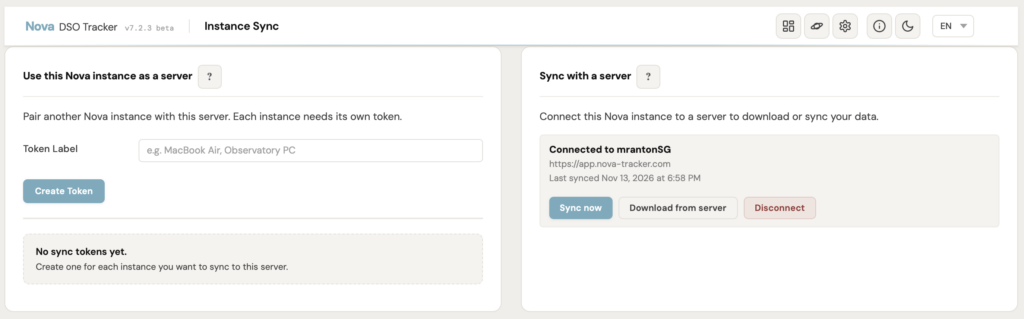
Image offline, sync later
Sync doesn’t need a connection while you image. Log the night at a dark site without signal, add your photos and logs as usual, and the next Sync now once you’re back online brings both sides together. If the same record was changed on both computers in the meantime, Nova shows you the conflict and the newest change wins, on both sides.
Careful with your data
- A backup before every download and sync, kept on that computer under
instance/backups/sync/. - Nothing replaced is thrown away. Files pushed aside by an incoming version are moved to
instance/replaced/, never deleted. - Big deletes ask first. A sync that would delete a large part of your data always needs a second confirmation.
- Tokens stay under your control. Revoke a token on the server whenever you like, and Disconnect on the client removes the pairing and the stored token.
Where you can use it
Connecting to a server is switched on by default in single-user installations, which covers Nova for Mac and most self-hosted setups. A multi-user installation is normally the server itself, so it’s off there. Admins who want it anyway can set NOVA_SYNC_CLIENT=on in instance/.env and restart Nova.
Want the details? The Sync help page inside Nova covers everything, including how to restore a backup. If you’re moving an existing installation onto a new server, import your YAML files there first (Configuration → Data Tools → Import), so the first download has something to download.
As always, if something doesn’t behave the way you expect, open an issue on GitHub or write to me. I’d love to hear how you use it.